Shopify integration
Give your customers the option of paying in instalments on your site with FLOA .
Quick and easy integration:
- Add FLOA payment methods to your payment methods,
- Offers deferred payment from 1 to 30 days accross Europe
- Offer payment in instalments 3,4 times in Europe and 10 times in France
- Boost your sales by informing your customers on product pages and shopping carts that they can pay in instalments, and simulate their due dates early in the sales process.
Technical Data Sheet
| Version | 1.0.0 |
|---|---|
| Company | FLOA |
| Author | FLOA |
| Date | Payment app : 04/07/25 |
| Platform | Shopify |
| Licence | Commercial |
| Change Log |
Installation of the module FLOA App Badge
The Floa pay Badge shopify app display FLOA's availability on your product pages and in the cart.
[block:image]{"images":[{"image":["https://files.readme.io/85a6f13b4ecfa97c1ec038237413a5f675cc4715cff4e97ed35ba9eb566882bb-Shopify_-_product_pageEN.png","",""],"align":"center","sizing":"500px","border":true}]}[/block]
![https://files.readme.io/85a6f13b4ecfa97c1ec038237413a5f675cc4715cff4e97ed35ba9eb566882bb-Shopify_-_product_pageEN.png","",""],"align":"center","sizing":"500px","border":true}]}[/block](https://files.readme.io/85a6f13b4ecfa97c1ec038237413a5f675cc4715cff4e97ed35ba9eb566882bb-Shopify_-_product_pageEN.png","",""],"align":"center","sizing":"500px","border":true}]}[/block)
You can download the module directly from the link below to get the latest version
[block:html] { "html": "<a target=\"_blank\" href=\"https://apps.shopify.com/floapay-badge?locale=fr \" style=\"padding: 10px 30px; background:#009FFF; color: white;text-transform: uppercase;text-decoration: none;font-weight:bold\">\n\tDOWNLOAD THE FLOA Pay MODULE FOR SHOPIFY\n" } [/block]
Theme compatible V2
Once the app is installed, go to the Theme section
- Online Store > Themes > Edit theme
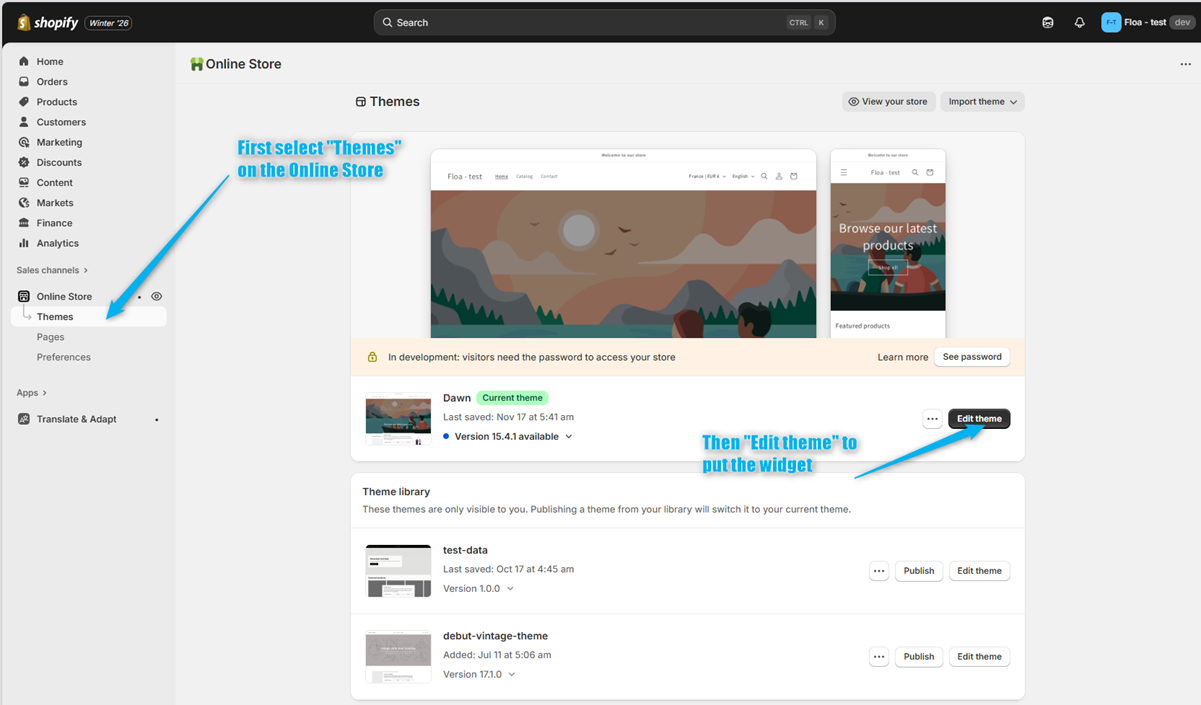
You are redirected to the theme editor.
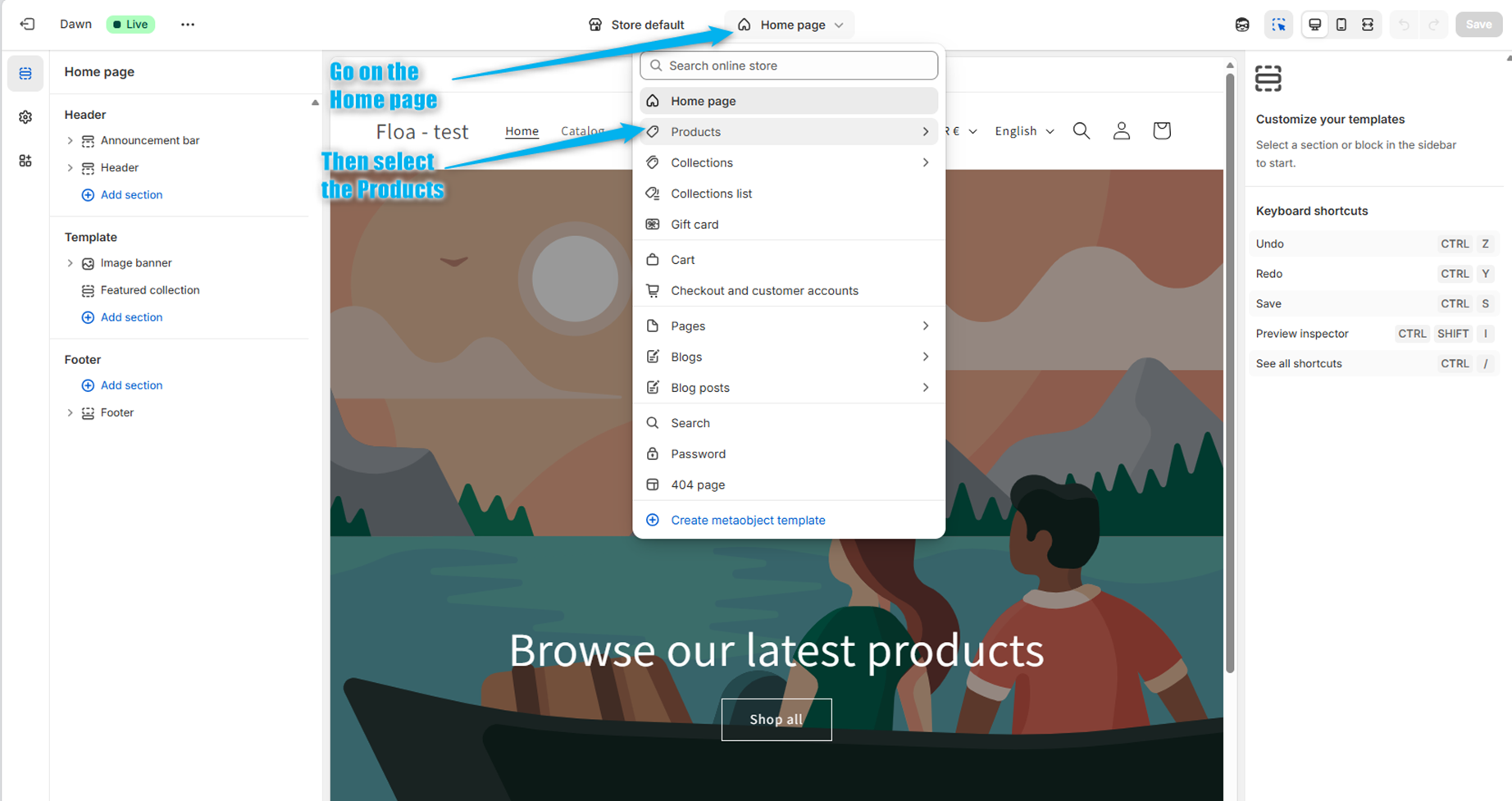
- Go on the "Home page", then select "Products" :
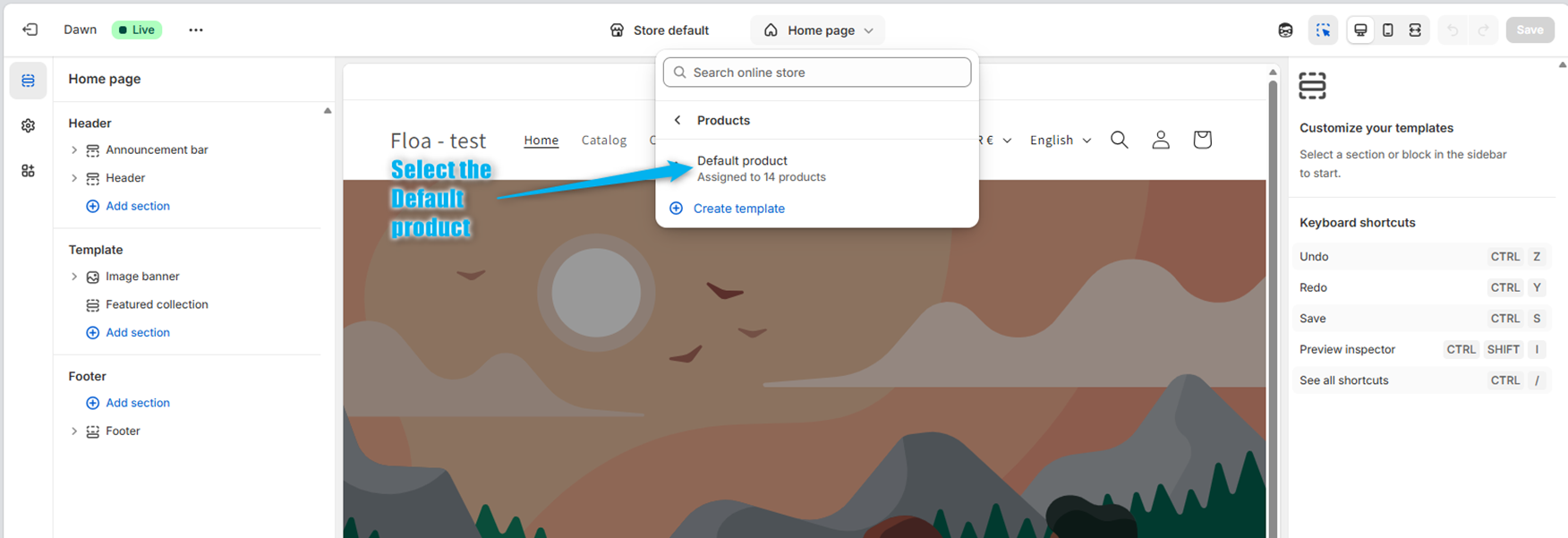
After selecting "Products", go on the "Default product"
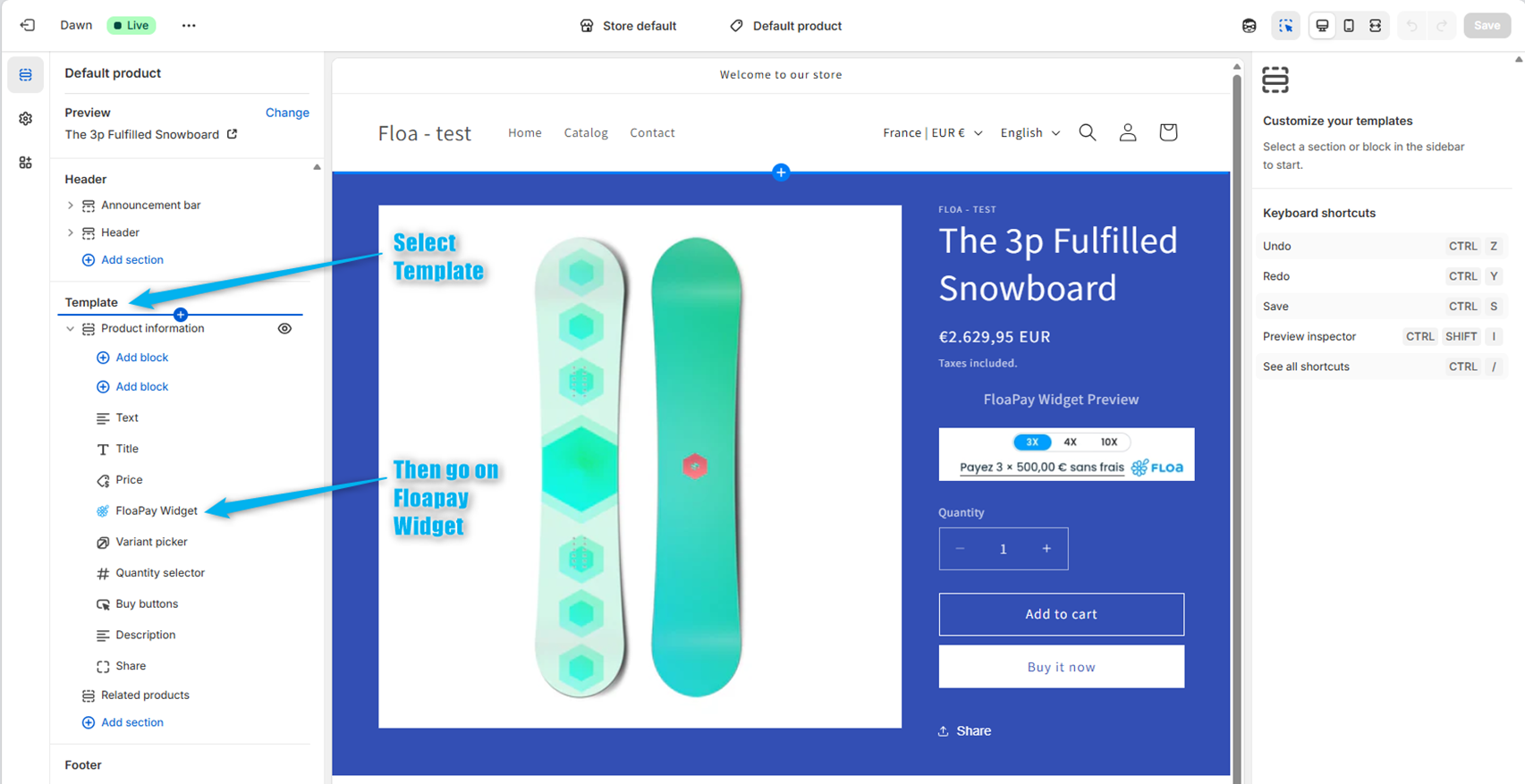
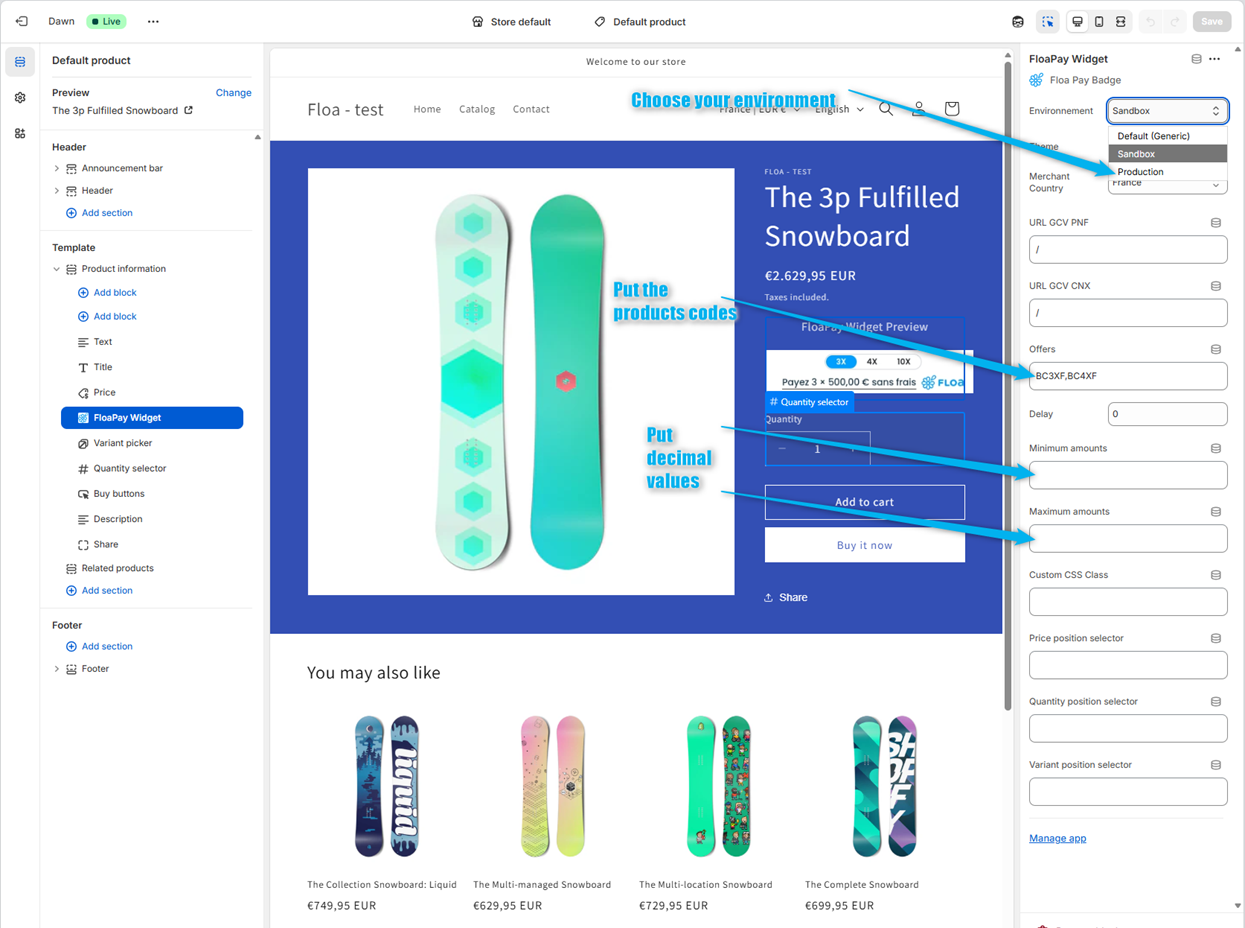
- In the left-hand sidebar, you will find the FLOA App Badge. You can adjust its display position by dragging and dropping it up or down.
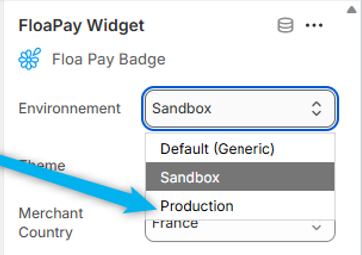
- By clicking on Floa App Badge, you will see the customizable variables of the display :
[block:parameters]
{
"data": {
"h-0": "Name",
"h-1": "Mandatory",
"h-2": "Variable description",
"h-3": "Exemple",
"0-0": "Environment",
"0-1": "per default value : Sandbox",
"0-2": "Display FLOA environnent. Click on the environnent you want. If you select the production environment, please ensure that test mode is disabled in the settings (see below \"How to disabled the test mode\").",
"0-3": "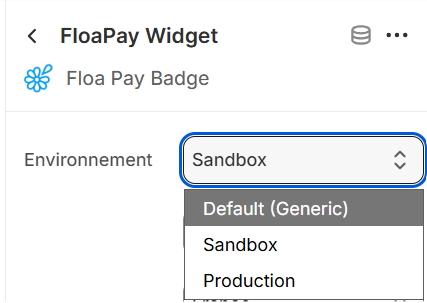 \n \n
\n \n
",
"1-0": "Theme",
"1-1": "per default value : Default (Brand)",
"1-2": "Theme of the FLOA. Select in the list the theme",
"1-3": "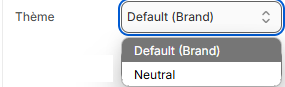 ",
"2-0": "Country of the partner",
"2-1": "Yes",
"2-2": "Allow to display fee plan specific for a country. Select in the list the country. ",
"2-3": "
",
"2-0": "Country of the partner",
"2-1": "Yes",
"2-2": "Allow to display fee plan specific for a country. Select in the list the country. ",
"2-3": "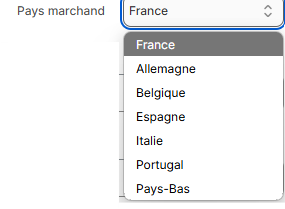 ",
"3-0": "URL CGV PNF",
"3-1": "Yes, for FLOA payment method \< 4",
"3-2": "Link to FLOA terms and conditions: a different link per country. \n• France: https://www.floabank.fr/conditions-generales-paiement-plusieurs-fois \n• Spain: https://www.floapay.es/CGV-Spain \n• Italy: https://www.floapay.it/CGV-Italy \n• Portugal: https://www.floapay.pt/CGV-Portugal \n• Belgium: https://www.floapay.be/CGV-belgium \n• Germany: https://www.floapay.de/CGV-Germany \n• Netherlands: https://www.floapay.nl/CGV-Netherlands",
"3-3": "https://www.floabank.fr/conditions-generales-paiement-plusieurs-fois",
"4-0": "URL CGV PNF",
"4-1": "Yes, for FLOA payment method > 4",
"4-2": "Link to FLOA terms and conditions:",
"4-3": "",
"5-0": "Offres",
"5-1": "Yes",
"5-2": "FLOA product code per countries, in case of multiple productcode it's separeted by a coma. List of productCode :https://floapay.readme.io/v2.0/reference/product-1",
"5-3": "BC1XFD, BC3XF, BC4XF, BC10XF",
"6-0": "Report",
"6-1": "No, per default : 30",
"6-2": "Report delay in days for french PayLater product. Possible value : from 1 to 30 days. ",
"6-3": "30",
"7-0": "Montants minimum",
"7-1": "No",
"7-2": "Minimum amount (different from Floa’s) to display payment method. The amount must be multiplied by 100.",
"7-3": "BC3XF:2000, BC10XF:5000",
"8-0": "Montants maximum",
"8-1": "No",
"8-2": "Maximum amount (different from Floa’s) to display payment method. The amount must be multiplied by 100.",
"8-3": "BC3XF:7000"
},
"cols": 4,
"rows": 9,
"align": [
"left",
"left",
"left",
"left"
]
}
[/block]
",
"3-0": "URL CGV PNF",
"3-1": "Yes, for FLOA payment method \< 4",
"3-2": "Link to FLOA terms and conditions: a different link per country. \n• France: https://www.floabank.fr/conditions-generales-paiement-plusieurs-fois \n• Spain: https://www.floapay.es/CGV-Spain \n• Italy: https://www.floapay.it/CGV-Italy \n• Portugal: https://www.floapay.pt/CGV-Portugal \n• Belgium: https://www.floapay.be/CGV-belgium \n• Germany: https://www.floapay.de/CGV-Germany \n• Netherlands: https://www.floapay.nl/CGV-Netherlands",
"3-3": "https://www.floabank.fr/conditions-generales-paiement-plusieurs-fois",
"4-0": "URL CGV PNF",
"4-1": "Yes, for FLOA payment method > 4",
"4-2": "Link to FLOA terms and conditions:",
"4-3": "",
"5-0": "Offres",
"5-1": "Yes",
"5-2": "FLOA product code per countries, in case of multiple productcode it's separeted by a coma. List of productCode :https://floapay.readme.io/v2.0/reference/product-1",
"5-3": "BC1XFD, BC3XF, BC4XF, BC10XF",
"6-0": "Report",
"6-1": "No, per default : 30",
"6-2": "Report delay in days for french PayLater product. Possible value : from 1 to 30 days. ",
"6-3": "30",
"7-0": "Montants minimum",
"7-1": "No",
"7-2": "Minimum amount (different from Floa’s) to display payment method. The amount must be multiplied by 100.",
"7-3": "BC3XF:2000, BC10XF:5000",
"8-0": "Montants maximum",
"8-1": "No",
"8-2": "Maximum amount (different from Floa’s) to display payment method. The amount must be multiplied by 100.",
"8-3": "BC3XF:7000"
},
"cols": 4,
"rows": 9,
"align": [
"left",
"left",
"left",
"left"
]
}
[/block]
- Click on Save.
How to disable the test mode ?
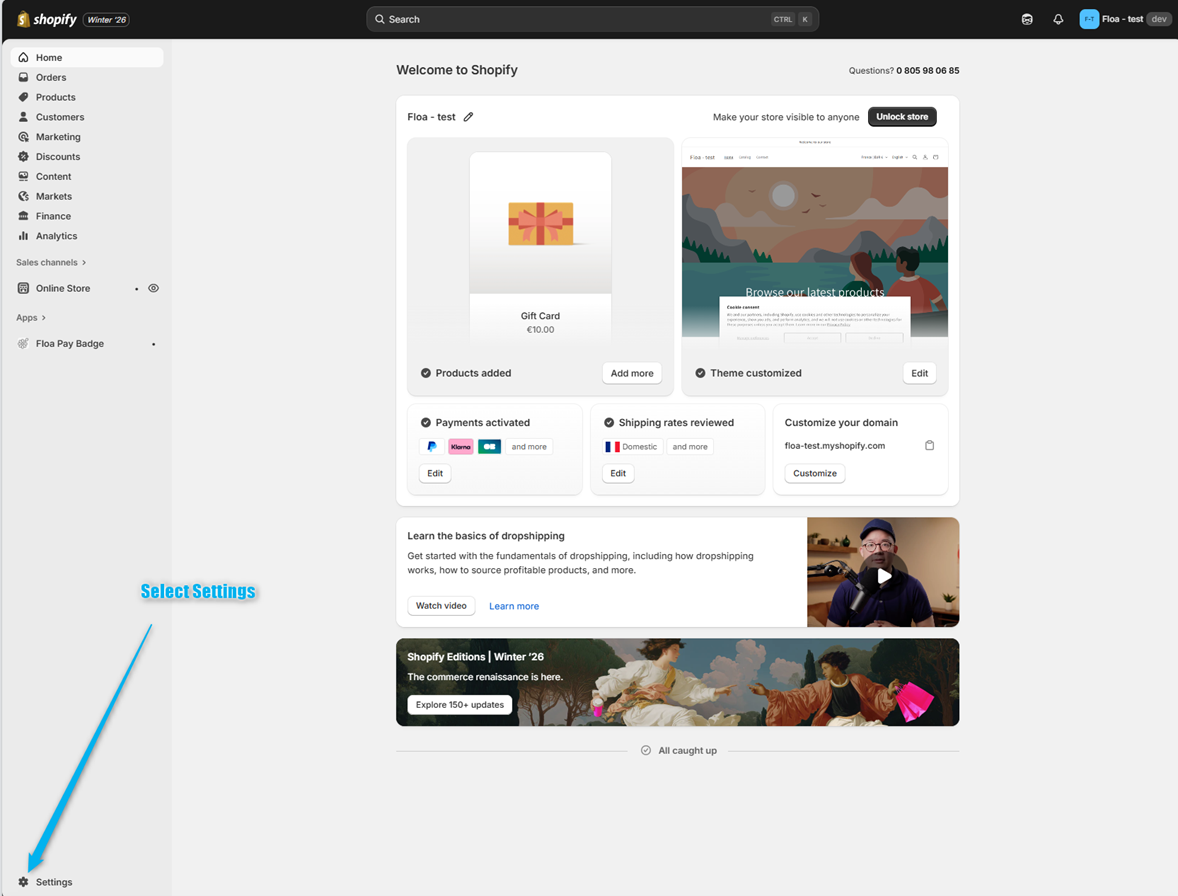
Once the production environment has been selected in the FLOA App Badge settings :
Please ensure that test mode is disabled in the settings.
- Go to the settings located in the corner of the home page.
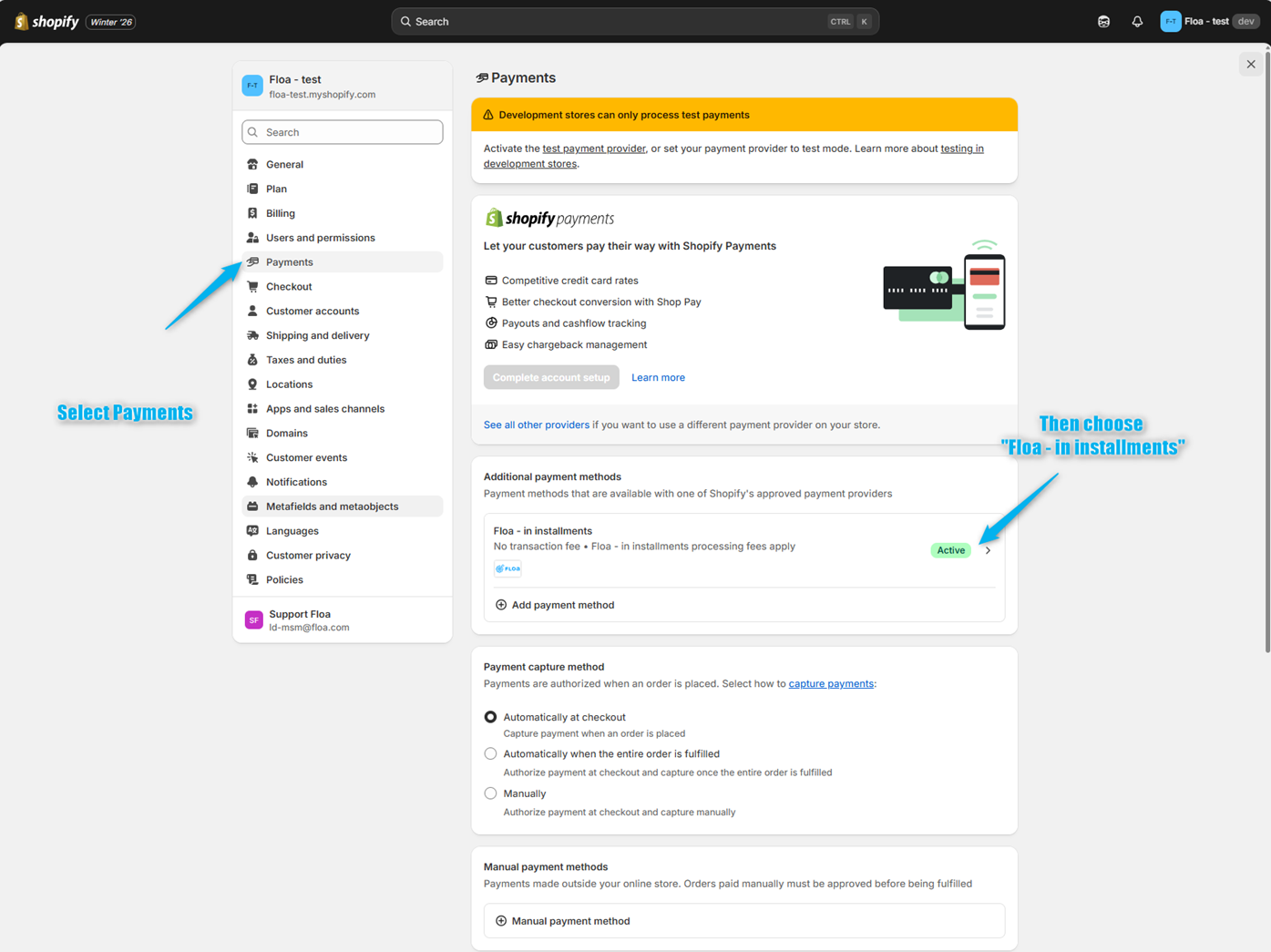
- Select "Payments", and click on "Floa - in installments" :
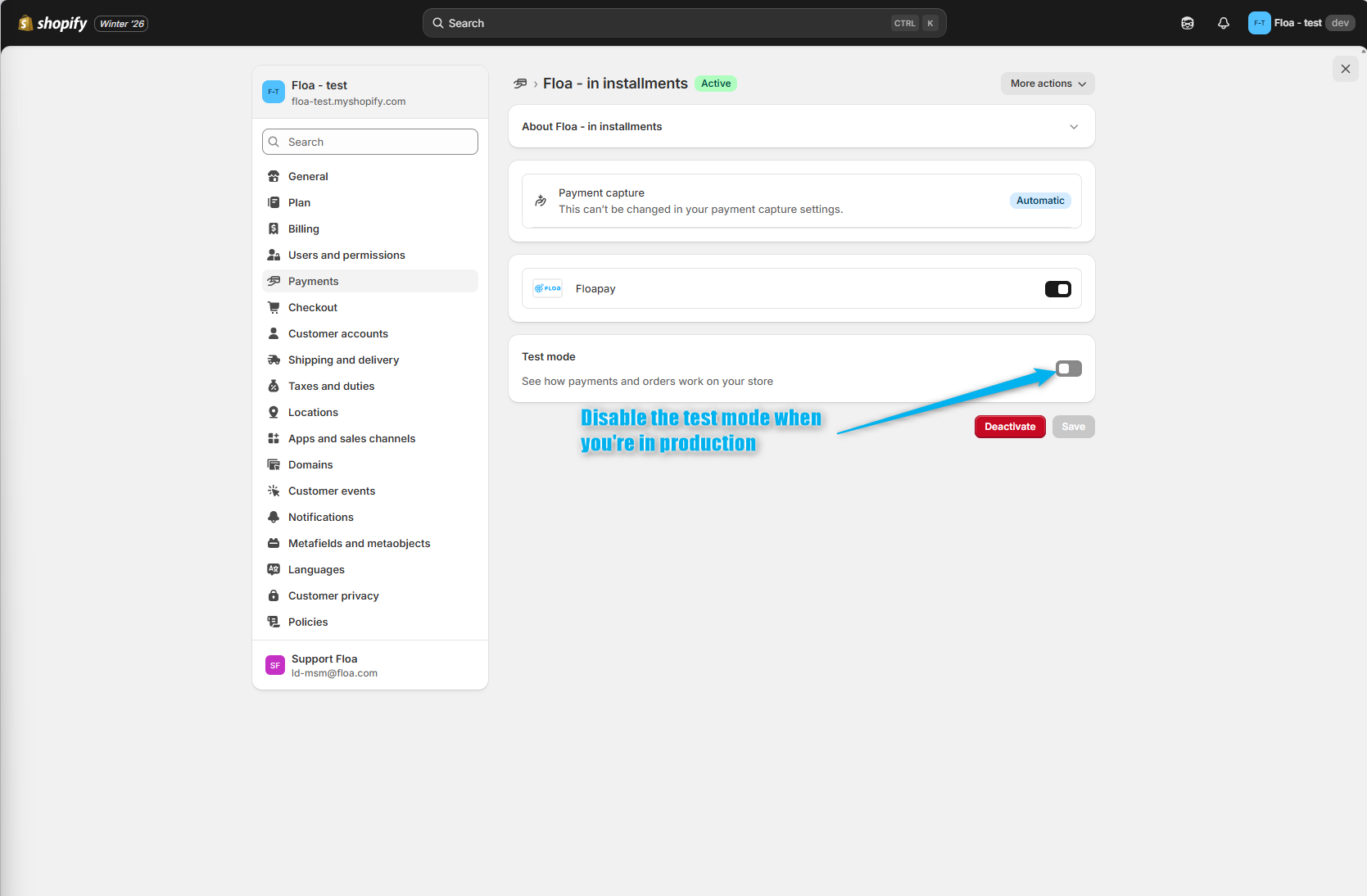
- Then, disable the test mode :
Theme not compatible V2
If your theme is not compatible with blocks, you must add the App Badge content directly in your theme.
-
Go to the "Online Store" section and click on "Edit code" on the current theme :
[block:image]{"images":[{"image":["https://files.readme.io/007b224be86e71570149607ba4d81e884606cf3a3a6039ce186a8a2b5b48d73b-image.png",null,""],"align":"center","border":true}]}[/block]
-
Go to the liquid template linked to the product page, look for the add to cart button / pay button on the
liquid sections of your theme :[block:image]{"images":[{"image":["https://files.readme.io/b4c7f5b39b5d1a29ce50a21a7077e6f18b63c018039cb96c49133cb1347bf9b8-image.png",null,""],"align":"center","border":true}]}[/block]
-
Example on the product page with the offers BC3XF, BC4XF and BC10XF :
[block:image]{"images":[{"image":["https://files.readme.io/ef977739c72c0f0d8480868c225f6faedfa3b4fb2be79f56bfdb2d2e376f4d70-image.png",null,""],"align":"center","border":true}]}[/block]
In this example, we add it just after the add to cart button, feel free to adapat the position to your needs.
The section "Configuration that is usually done on Shopify admin Block"
This element should be adapted to your configuration, to bind the offers you want to purpose to your customers and the cnx/pnf links (general conditions for floa offers).
More details here : https://floapay.readme.io/reference/shopify#floa-pay---badgeThe minimum and maximum amount must always be provided (add empty if you don't have any restrictions about amounts and offers).
![https://files.readme.io/007b224be86e71570149607ba4d81e884606cf3a3a6039ce186a8a2b5b48d73b-image.png",null,""],"align":"center","border":true}]}[/block](https://files.readme.io/007b224be86e71570149607ba4d81e884606cf3a3a6039ce186a8a2b5b48d73b-image.png",null,""],"align":"center","border":true}]}[/block)
![https://files.readme.io/b4c7f5b39b5d1a29ce50a21a7077e6f18b63c018039cb96c49133cb1347bf9b8-image.png",null,""],"align":"center","border":true}]}[/block](https://files.readme.io/b4c7f5b39b5d1a29ce50a21a7077e6f18b63c018039cb96c49133cb1347bf9b8-image.png",null,""],"align":"center","border":true}]}[/block)
![https://files.readme.io/ef977739c72c0f0d8480868c225f6faedfa3b4fb2be79f56bfdb2d2e376f4d70-image.png",null,""],"align":"center","border":true}]}[/block](https://files.readme.io/ef977739c72c0f0d8480868c225f6faedfa3b4fb2be79f56bfdb2d2e376f4d70-image.png",null,""],"align":"center","border":true}]}[/block)